

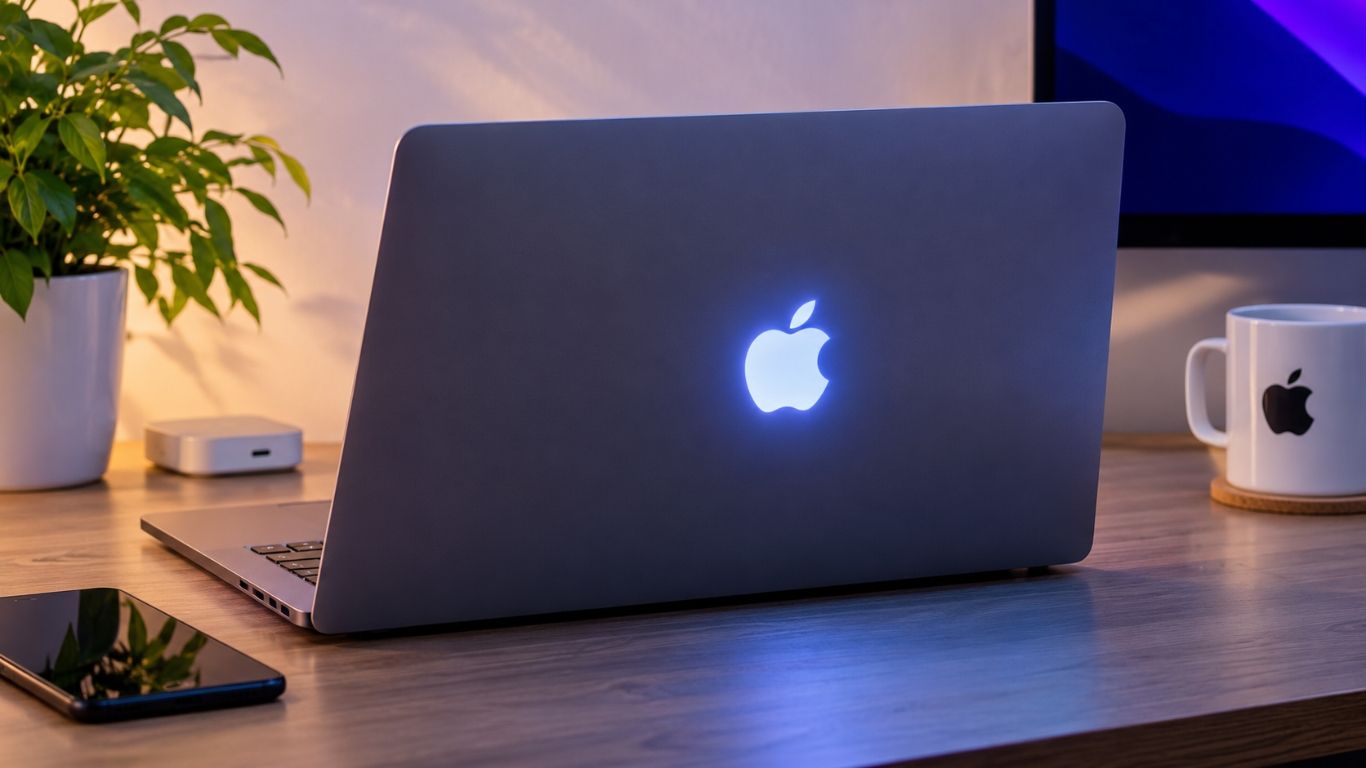
Remember the glowing Apple logo on older MacBooks? Many Apple users missed it after the company removed it from its laptops in 2016. Now, the MacBook Pro Glowing Apple Logo is back, and many Apple fans are excited to see this design feature return.
Now, Apple has brought it back with its new MacBook Pro models. The Apple logo on the back of the display lights up when the laptop is turned on.
But there is something more interesting. You can now adjust the logo’s lighting with the help of a separate Mac app.
Let’s see how this new feature works and what you can do with it.
Which MacBook Pro Models Have the Glowing Apple Logo?
The glowing Apple logo is available on the new 14-inch and 16-inch MacBook Pro models with the PROLED XDR display.
Apple has brought back this design after around ten years. However, it is not exactly the same technology used in older MacBooks.
Earlier models used light from the display’s backlight to make the Apple logo glow. The new models use a separate light source because their OLED displays do not have a traditional backlight.
The logo looks like a normal polished Apple logo when the laptop is closed. It lights up when the MacBook is awake.
Which MacBook Pro Models Have the Glowing Apple Logo?
The glowing Apple logo is available on the new 14-inch and 16-inch MacBook Pro models with the PROLED XDR display.
Apple has brought back this design after around ten years. However, it is not exactly the same technology used in older MacBooks.
Earlier models used light from the display’s backlight to make the Apple logo glow. The new models use a separate light source because their OLED displays do not have a traditional backlight.
The logo looks like a normal polished Apple logo when the laptop is closed. It lights up when the MacBook is awake.
How Does the MacBook Pro Glowing Apple Logo Work?
The logo does not have a brightness setting of its own. Its glow changes along with your MacBook’s screen brightness.
When Turn the screen brightness up and the logo gets brighter too. Lower it, and the glow fades. It’s pretty simple.
The light in your room also makes a difference. In a dark room, the logo appears less bright. Move somewhere with more light and it can look brighter.
You don’t have to adjust the logo yourself. It follows the lighting changes automatically.
It’s a small detail, but it makes the glowing logo feel more natural instead of looking too bright in every situation.
How to Change the Glowing Apple Logo Settings With Backglow
Want to change how the Apple logo looks on your MacBook? You can do that with an app called Backglow. It was made by developer Juan Buis and gives you a few extra lighting options.
For example, you can make the logo brighter or turn the light off completely. There are also different effects to try.
Here is what you can do with the app:
- Change brightness: Make the Apple logo brighter or dimmer.
- Turn off the light: Switch off the glowing logo whenever you don’t need it.
- Steady mode: Keep the logo lit at one brightness level.
- Breathe mode: Let the light slowly fade in and out.
- Music mode: Make the logo respond to the music playing on your Mac. This option is paid.
- Agents mode: Link the lighting to Claude Code activity. This is also a paid feature
Backglow offers some basic controls for free. If you want the extra features, you can upgrade to its Pro version with a one-time payment.
One thing to remember: Backglow is made by an independent developer. It is not an official Apple app or a feature built into macOS.
Can You Turn Off the Glowing Apple Logo Without an App?
Yes. Apple also provides a way to turn off the logo using the Terminal app.
You need an administrator account to do this.
Open Terminal on your Mac and enter this command:
sudo defaults write com.apple.CoreBrightness LEBacklightMode -int 0
Press Enter and type your administrator password when asked. The logo light should turn off.
To turn it back on, open Terminal again and enter:
sudo defaults delete com.apple.CoreBrightness LEBacklightMode
Press Enter. The logo should return to its normal automatic setting.
There is no simple on/off switch for this feature in System Settings at the moment. If you are not comfortable using Terminal, it is better to avoid changing these settings yourself.
Does the Glowing Apple Logo Affect Battery Life?
The new logo uses a dedicated light source, so it needs some power to work.
However, Apple has not published a separate battery-life figure showing how much power the logo uses. It would not be right to claim that it causes a major battery drain.
Backglow also says its app pauses normal lighting effects when the display sleeps, the Mac is locked or Low Power Mode is active.
Is the New Glowing Apple Logo Worth the Attention?
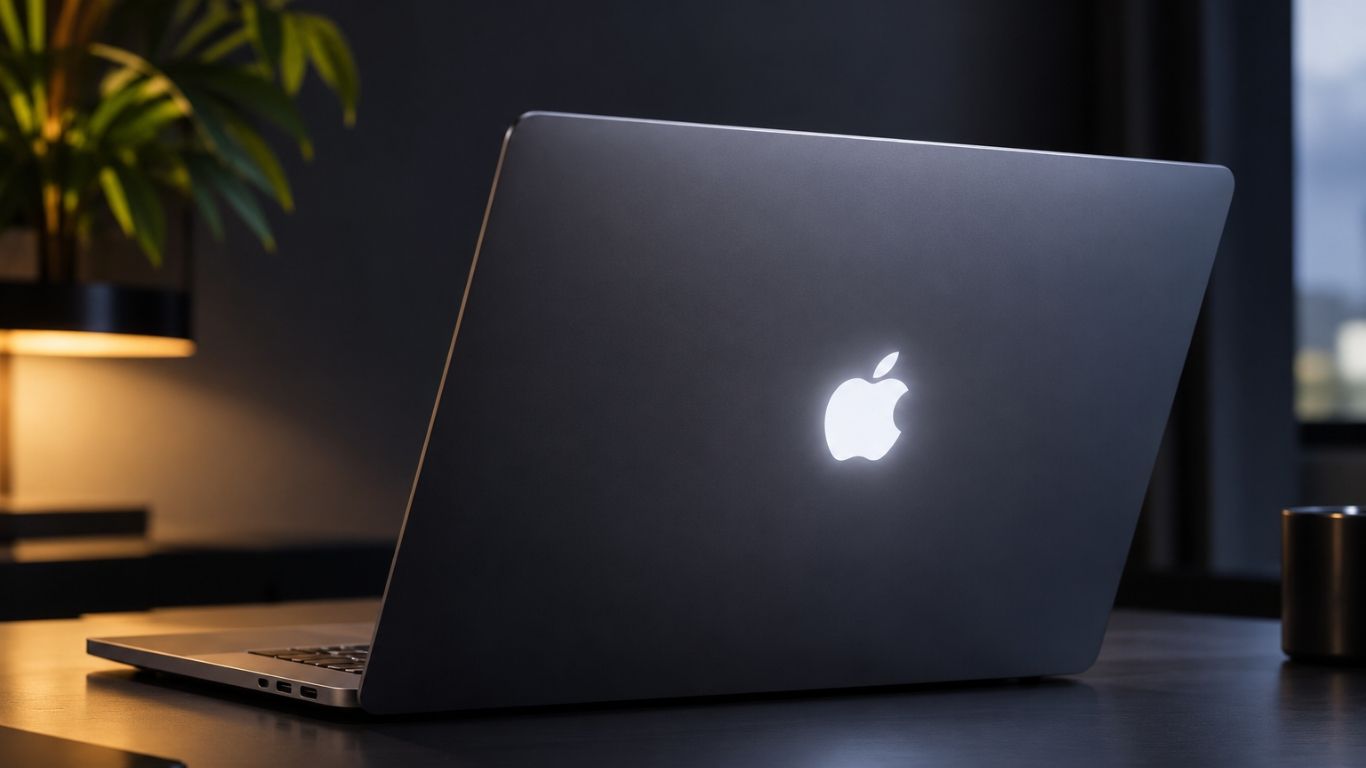
For some people, it is just a small design change. But for long-time MacBook users, seeing the glowing Apple logo return is something special.
The best part is that users now have more ways to control how it looks. Apple’s automatic lighting works without any extra setup, while Backglow offers additional options for those who want them.
It may not change how fast your MacBook works, but it certainly brings back a design feature that many Apple fans have missed.
Frequently Asked Questions
The MacBook Pro Glowing Apple Logo is a new design feature that makes the Apple logo on the back of the display light up when the laptop is turned on.
The glowing logo is available on the new 14-inch and 16-inch MacBook Pro models with the PROLED XDR display. It is not available on every MacBook.
Yes. You can use a third-party Mac app called Backglow to adjust the logo’s brightness and try different lighting effects.
The logo uses a light source, so it may use some power. However, Apple has not shared a separate battery consumption figure for this feature.
Yes. You can use the Backglow app to control the lighting. It also offers an option to turn the logo’s light off.