

MacBook Camera Repair in Dubai: Failure of One Camera Does Not Necessarily Mean the Need to Buy a Whole New MacBook
It is important to have a functional camera in order to call people and make video conferencing, while working from home and taking lessons online. When your MacBook camera stops functioning properly showing black image, low-quality videos, and does not get recognized by software such as FaceTime, Zoom, and Microsoft Teams, it can be very frustrating.
But failure of one camera does not necessarily mean that you should buy an entirely new MacBook.
MacBook Camera Repair in Dubai centers on finding out what is causing the failure of your camera before replacing unnecessary components. It might be an issue with the camera itself, cable, connector, software, permissions, or any other element associated with the camera. By pinpointing the exact fault, technicians will fix the defective part without affecting other functional parts of your MacBook.
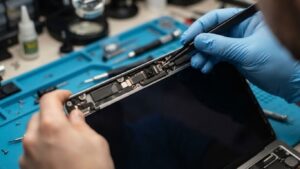
MacBook Camera Repair in Dubai
Common MacBook Camera Problems
MacBook camera failures can appear in different ways. Some problems are caused by software or privacy settings, while others may indicate a hardware fault.
Common symptoms include:
- MacBook camera not working
- Camera shows a black screen
- FaceTime cannot access the camera
- Zoom camera is unavailable
- Microsoft Teams cannot detect the camera
- Camera works intermittently
- Camera image freezes during calls
- Video quality suddenly becomes poor
- Camera disappears from supported applications
- Camera stopped working after a screen repair
- Camera failure after liquid or physical damage
The right solution depends on the cause of the problem.
“Why Is My MacBook Camera Not Working?”
Before replacing any camera part, you need to find out what caused your camera to stop working.
System and macOS Problems
The camera might stop working due to some system, application or security issue.
If your camera works in one app but not in another, then it probably doesn’t have anything to do with the hardware of your Mac.
Camera Permissions
macOS allows users to control which applications can access the camera. If FaceTime, Zoom, Teams, or another application does not have the appropriate permission, the camera may appear unavailable.
Faulty Camera Module
The camera hardware itself can fail. If the camera consistently produces a black image or is not detected by the system, the module may require professional testing.
Internal Cable or Connection Problems
The camera depends on internal connections between the camera hardware and the MacBook’s main system. A damaged, loose, or compromised connection can affect camera operation.
Previous Screen Repair
For the MacBook models that have the camera embedded inside the display assembly, a previous display repair process or unintentional damage to the camera parts during the process can be possible.
Liquid or Physical Damage
Falls, impact, or liquid damage may influence camera hardware and connection. If the camera fails right after any such event, a professional examination is required.
Signs Your MacBook Camera May Have a Hardware Problem
Some camera symptoms are more likely to require hardware diagnosis.
If the camera remains unavailable across multiple applications and continues to fail after basic software checks, the camera hardware may need inspection.
Other signs include:
- Camera not detected by supported applications
- Persistent black camera image
- Camera failure across different applications
- Camera stopped working after physical impact
- Camera stopped working after liquid exposure
- Camera failure following a display repair
- Intermittent camera operation
- Visible damage around the display camera area
A professional technician can determine whether the issue is software-related or caused by the camera module, cable, connector, or another hardware component.
MacBook Camera Repair vs. Replacing the MacBook
A camera problem is usually an isolated functional issue—not proof that the entire MacBook needs replacement.
Your MacBook may still have a perfectly functional:
- Display
- Logic board
- SSD or storage
- Keyboard
- Trackpad
- Battery
- Speakers
- Wi-Fi system
- Ports
- Processor and memory
If the problem is limited to the camera system, targeted repair can make more sense than replacing an otherwise usable computer.
The purpose of MacBook Camera Repair in Dubai is to identify the affected component and determine the most appropriate repair without unnecessarily replacing unrelated hardware.
What Does MacBook Camera Repair Involve?
A professional repair process should start with diagnosis.
1. Camera Function Testing
The camera can be tested using supported applications to determine whether the problem occurs across the system or only within a particular application.
2. Software and Permission Checks
Camera permissions, macOS behavior, and application settings can be checked to rule out common software-related causes.
3. Camera Module Diagnosis
If the camera remains unavailable, technicians can assess whether the camera module itself is functioning correctly.
4. Cable and Connector Inspection
Internal cables and connectors can be inspected for damage, disconnection, or other problems affecting communication between the camera and the MacBook.
5. Display-Area Inspection
For MacBook models where the camera is integrated into the display assembly, the surrounding area can be carefully inspected.
6. Targeted Repair
Once the cause is identified, the affected component can be repaired or replaced where technically appropriate.
7. Camera Testing After Repair
After service, the camera should be tested through applications such as FaceTime, Zoom, or Microsoft Teams to confirm that video functionality has been restored.
MacBook FaceTime Camera Not Working
One of the most common reasons for a MacBook camera to malfunction is because of FaceTime.
If FaceTime camera shows up as a black screen, if it cannot use the camera, or if it displays ‘Unavailable camera’, then the problem might be caused by some permissions, software, camera module, or internal connection problems.
Without jumping to conclusions and thinking that the camera requires replacement, one could try to diagnose the issue professionally and see if it really is a hardware problem.
MacBook Camera Not Working in Zoom
If the camera malfunctions when used through one particular application but works fine with others, then chances are that the problem is either with the application itself or with some permission issues.
But if the camera does not work in FaceTime, Zoom, Teams, and any other available applications, then it’s time to get hardware diagnosis done.
Microsoft Teams Camera Problems on MacBook
Remote work and business meetings often depend on Microsoft Teams.
If Teams cannot access your MacBook camera, check whether the camera is available to other applications. If it fails everywhere, the problem may require further diagnosis.
Professional MacBook Camera Repair can investigate whether the problem originates from the camera module, internal connection, software, or another component.
MacBook Camera Problems After a Screen Repair
If the camera worked before a display repair but stopped afterward, the camera system and relevant internal connections should be inspected.
Depending on the MacBook model, the camera can be integrated into the display assembly. This means camera-related components and connections may need careful inspection during display-related repairs.
A camera failure following a screen repair should not automatically lead to replacement of the entire MacBook.
Can Liquid Damage Affect the MacBook Camera?
Yes. Liquid entering a MacBook can potentially affect the camera module, internal cables, connectors, or logic board circuitry.
If your camera stopped working after water, coffee, or another liquid spill, the camera may not be the only affected component.
A professional inspection can determine whether the problem is isolated or part of broader liquid damage.
Importance of Diagnosing the Problem Correctly
Replacing the camera without identifying the actual problem may lead to unnecessary cost expenditure.
This is because replacing the hardware component may not be the solution, as illustrated by an example where the actual issue is that the camera cannot access a software permission to run Zoom.
A proper diagnostic process helps answer:
- Is the camera recognized by the MacBook?
- Does the problem occur across multiple applications?
- Is the issue caused by software or hardware?
- Is the camera module functioning?
- Are the cable and connections intact?
- Is there evidence of physical or liquid damage?
Once these questions are answered, the repair can be planned around the actual fault.
Why Choose Professional MacBook Camera Repair in Dubai?
MacBook camera systems can be integrated into compact display assemblies, making careful handling important.
Professional repair offers several advantages.
Detailed Diagnosis
The technician investigates the camera problem before recommending replacement.
Targeted Repair
The repair focuses on the camera module, cable, connector, or other applicable component responsible for the failure.
Preservation of Working Components
A repair-first approach helps protect the rest of the MacBook when those components are functioning normally.
Application Testing
The camera can be tested with common video conferencing applications after repair.
Better Value
Repairing a specific camera issue can be more practical than replacing a MacBook that otherwise works correctly.
How to Prevent MacBook Camera issues
Whereas some types of problems may not be prevented, cautious handling of the device will ensure that it remains undamaged.
Ensure that your MacBook is kept away from water sources and that it is not subjected to too much pressure on the screen. Care must be taken while handling the screen and the area around the camera.
Make sure that macOS and any video chat software you use are up-to-date. Check camera permissions from time to time since an application may suddenly lose its permissions.
If the camera starts acting weirdly, diagnosing the problem will ensure that a minor problem does not escalate into a bigger one.
Don’t Replace the MacBook for One Failed Camera
MacBook camera failure may turn out to be very annoying but doesn’t mean that there is some serious malfunction with your computer.
Everything else may work fine. Your MacBook’s screen, motherboard, hard drive, keyboard, battery, trackpad, wireless connection and other parts may continue functioning flawlessly despite camera stoppage.
This is why MacBook Camera Repair Dubai service should concentrate on the fault itself without any recommendations for replacing the device.
Get Professional MacBook Camera Repair in Dubai
Do not be compelled by a faulty camera to replace a perfectly good MacBook.
In case of any problem like your camera is displaying black screen, is not being detected, works inconsistently or stopped working on face time, zoom and other applications, professional diagnostics can help in determining whether it is software related or hardware related.
In MacBook Camera Repair Dubai, it is the aim to fix the camera without compromising the rest of the MacBook.
Fix the camera problem. Preserve the working components. Keep your MacBook in service. WhatsApp us today for professional repair support.
FAQ
1.Why is my MacBook camera not working?
MacBook camera may stop functioning because of software, camera permissions, a faulty camera module, problems with cables or connectors in the computer, damage from liquid, or screen repair previously made. Diagnosing the problem will help find out what caused the trouble.
2.Can MacBook camera be repaired in Dubai without replacing the whole computer?
Sure, if the problem is associated with camera module, cables, connectors, or any other specific part. In this case, camera will be restored while the rest of the components of your MacBook will stay untouched.
3.Why is MacBook camera not working anymore after screen repair?
In some models of MacBook the camera is part of the display assembly, which means that while repairing the screen something might get broken. The camera will be tested by the specialist.